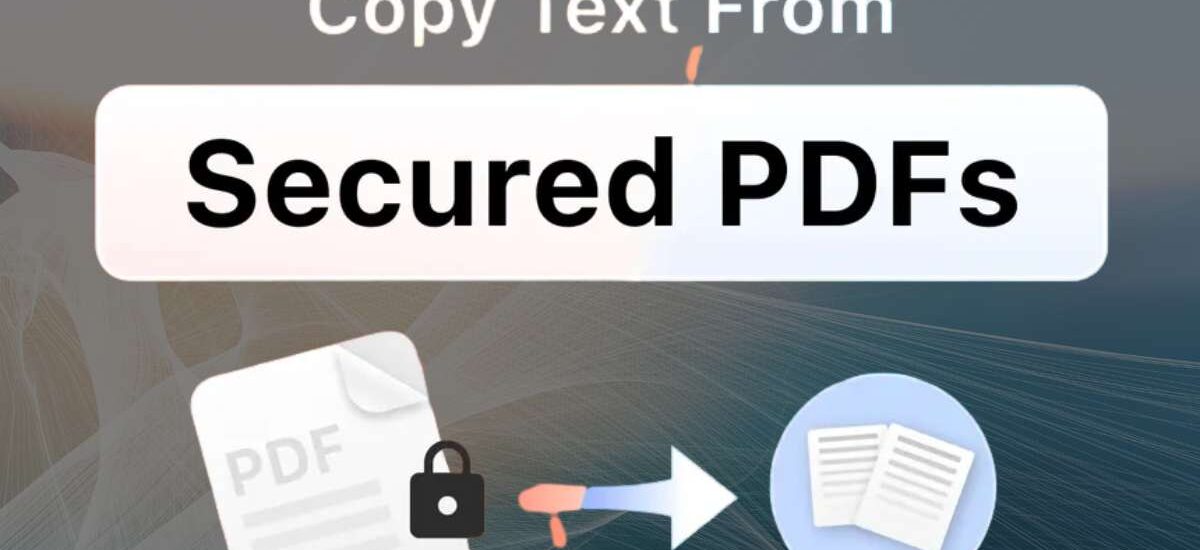
PDFs are one of the most widely used file formats in the world because they preserve formatting, prevent accidental edits, and ensure consistent viewing across devices. But sometimes, this convenience turns into a frustrating limitation—especially when you need to copy text from a secured or restricted PDF.
Maybe it’s a report you need for your research.
Maybe it’s a contract you want to quote in a document.
Maybe it’s educational material that you simply want to reuse for notes.
And suddenly… the copy option is greyed out.
If you’ve found yourself stuck, unable to extract even a single line from a locked PDF, don’t worry. You’re not alone—and you do have solutions.
This comprehensive guide will walk you through why PDFs are locked, how to unlock them, and multiple methods to safely copy text, ranging from Acrobat tools to free online utilities. Everything is broken into simple steps with clear explanations.
Let’s begin.
Why Unlock PDF for Copying?
PDF creators often add copy restrictions to prevent unauthorized use, plagiarism, or content theft. While these protections serve a real purpose, they sometimes block legitimate users from accessing content they rightfully need.
There are several situations where unlocking a PDF becomes essential:
1. Educational and Professional Needs
Students, researchers, and professionals frequently rely on PDFs. If a professor or institution shares a locked file, the inability to extract text for notes or citations can be a real inconvenience.
2. Business and Corporate Use
Companies often distribute secured documents for internal use. However, employees may need to copy sections of a PDF to prepare reports, presentations, or emails.
3. Content Reuse and Editing
Writers, marketers, and designers may need to reuse text in brochures, project files, or ebooks. A copy-protected PDF slows the workflow and forces unnecessary manual rewriting.
4. Accessibility
Locked PDFs can cause issues for people who use screen readers or note-taking apps. Unlocking the document can help convert the content into formats compatible with assistive technologies.
5. Time Efficiency
Manually retyping text from a PDF is time-consuming and error-prone. Unlocking the file eliminates this extra effort.
In short, PDF restrictions are not inherently bad—they just create hurdles when you’re trying to use the content for legitimate, personal, or professional reasons.
How to Copy Text from Secured PDF File?
Copying text from a secured PDF depends on two things:
- The type of restriction
- The tools you have available
There are generally two levels of PDF protection:
- User Password (Open Password): Blocks access to the PDF entirely without a password.
- Owner Password (Permission Password): Allows viewing but blocks copying, editing, printing, etc.
If your PDF opens but won’t allow copying, it’s likely restricted by an owner password. Most PDF unlocking methods can remove this type of restriction—ethically, as long as you are authorized to use the document.
Below are multiple working methods to copy text from a secured PDF, ranging from Adobe Acrobat to Chrome and free unlocking tools.
How to Remove Copy Protection from PDF with Acrobat
Adobe Acrobat Pro is the official tool for editing and unlocking PDFs. If you already have Acrobat Pro, this is the most reliable method.
Here’s how you can remove copy restrictions using Adobe Acrobat:
Step 1: Open the Secured PDF
Launch Adobe Acrobat Pro and open the PDF you want to unlock. If the file is password-protected for viewing, you’ll need to enter the password first.
Step 2: Check the Security Settings
Go to:
File > Properties > Security
In the security tab, you’ll see the type of restrictions applied.
Step 3: Change Security Settings
If you have permission:
- Set Security Method to No Security
- This will remove copying, printing, and editing restrictions
Step 4: Save the New PDF
Save the file under a new name to ensure the changes apply.
Now you can open the new PDF and copy text freely without any restrictions.
When This Method Works Best
- When you’re authorized to remove protections
- When the PDF uses standard Adobe password-based security
- When you have access to Acrobat Pro
When It Might Not Work
- If the document is digitally signed
- If restrictions were applied with third-party encryption
Still, Acrobat is one of the most trusted ways to unlock PDFs.
How to Unlock PDF to Copy Text Using Chrome
Most people don’t know this, but Google Chrome can act as a basic PDF tool. If the PDF is only restricted by an owner password (not an open password), Chrome can often remove copying protection simply by reprinting the file.
Here’s how:
Step 1: Open the PDF in Chrome
Drag and drop the secured PDF into a new Chrome tab.
Step 2: Enter the Password (If Needed)
If the file requires an open password, enter it.
Step 3: Print the Document as PDF
Click the Print option (Ctrl + P) and choose:
Destination → Save as PDF
Step 4: Save the New File
Chrome creates a fresh PDF without restrictions.
Step 5: Copy Text Freely
Now open the new PDF and test copying text. In most cases, the restrictions will be gone.
This Method Works Well Because:
- Chrome strips permissions during the print-to-PDF process
- It bypasses many owner-level protections
- It doesn’t need any installations
However, It Doesn’t Work If:
- The “Print” option itself is disabled in the PDF
- The PDF uses robust third-party encryption
- The file is locked entirely (open password missing)
As a free and simple trick, Chrome is often surprisingly effective.
How to Copy from Secured PDF Using Free Tool
If you don’t have Acrobat Pro or if the Chrome method doesn’t work, you can use a free online PDF unlocker. Many websites allow you to upload a restricted PDF and download the unlocked version.
These tools typically remove:
- Copy restrictions
- Editing restrictions
- Print restrictions
- Owner passwords
- Certain encryption layers
Common free unlockers include:
- Online PDF unlocking tools
- Browser-based converters
- Free desktop utilities
How Online Unlockers Work
You upload your secured PDF → the tool processes it → you download an unlocked copy.
Advantages
- Free
- No installations
- Fast
- Beginner-friendly
Downsides
- Not ideal for sensitive or private documents
- Some tools add watermarks
- File size may be limited
If your PDF doesn’t contain confidential content, a free online tool is a quick way to bypass restrictions.
Stepwise Guide for Copy from Protected PDF
To help you even more, here’s a step-by-step guideline you can follow with almost any method:
Step 1: Identify the Type of Security
Open the PDF → Go to File > Properties > Security
Check whether “Copying” is allowed or restricted.
Step 2: Try Basic Copying
Sometimes only part of the file is protected.
Try selecting text. If it doesn’t work, move to the next step.
Step 3: Try Chrome Method
Open the PDF in Chrome, then print to PDF.
If that works, you’re done.
If not, continue.
Step 4: Use Free Online Unlocker
Upload the PDF → Unlock it → Download the new file.
Check if copying works.
Step 5: Try Adobe Acrobat Pro
If you have Acrobat, set security to “No Security.”
Step 6: Convert PDF to Another Format
Use a PDF converter (Word, text, or image-to-text OCR).
This extracts content even from stubborn files.
Step 7: Use OCR If Needed
If the PDF is scanned or contains images instead of text, use OCR:
- Online converters
- Adobe Acrobat OCR
- Free desktop OCR tools
OCR converts images into copyable, editable text.
Step 8: Save and Reuse Content
Now copy, paste, edit, or reformat the extracted text as needed.
By following this sequence, you will unlock almost any PDF—regardless of how restricted it is.
Key Features of Free Software
A good free PDF unlocking tool should offer several features to make the process easy and reliable. While tools vary, look for these benefits:
✔ 1. Simple User Interface
A clean, intuitive interface helps beginners unlock PDFs without confusion.
✔ 2. Support for Owner Password Removal
This is essential for enabling copy, edit, and print permissions.
✔ 3. No Watermark Output
Some tools leave watermarks; better ones don’t.
✔ 4. Batch Unlocking
Some free utilities allow unlocking multiple PDFs at once.
✔ 5. Conversion Options
Tools that let you convert PDFs to:
- Word
- Text
- Excel
- HTML
—are often more flexible.
✔ 6. OCR Technology
For scanned PDFs, OCR is a must.
It extracts text from images, which otherwise cannot be copied.
✔ 7. Cross-Platform Support
Windows, macOS, Linux, Android, iOS—wide compatibility ensures flexibility.
✔ 8. No Hidden Charges
Many “free” tools hide premium requirements.
Look for tools that genuinely operate without cost.
✔ 9. Fast Processing
Good software shouldn’t take minutes per file.
Speed matters, especially for large or multiple PDFs.
✔ 10. Secure File Handling
Some tools delete your file automatically after processing.
This is reassuring for privacy-conscious users.
Commonly Asked Questions
1. Why can’t I copy text from my PDF?
Your PDF likely has copying disabled through an owner password.
This prevents text extraction.
2. Is it legal to unlock a PDF?
Yes—if you own the document or have permission from the owner.
It is not legal to break DRM on copyrighted content without authorization.
3. Will unlocking a PDF damage the file?
No, unlocking only changes permission settings.
Your content remains unchanged.
4. What if my PDF is scanned and not actual text?
You’ll need OCR software to extract the content.
5. Do free tools work on all PDFs?
Most can remove basic restrictions.
But heavily encrypted PDFs may need more advanced tools.
6. What’s the safest method for sensitive documents?
Use offline software like Acrobat or a desktop unlocking program.
7. Can Chrome unlock all PDFs?
No.
Chrome can only remove restrictions from printable PDFs.
8. Does unlocking allow editing too?
Yes—removing copying restrictions also usually removes editing limitations.
Final Words
Running into a secured PDF when you need to copy text is frustrating—but the good news is that it’s almost always fixable. Whether you use Adobe Acrobat, Chrome, or a free online tool, there are many ways to unlock your document safely and effectively.
The best method depends on your situation:
- Need a quick free option? Try Chrome or an online unlocker.
- Handling sensitive documents? Use Acrobat or an offline tool.
- Working with scanned PDFs? Use OCR-based software.
At the end of the day, unlocking a PDF isn’t about bypassing rules—it’s about working smarter and accessing information you already have the right to use.
With the methods in this guide, you can remove copy restrictions smoothly and reclaim full access to your PDFs.