Digital forensics often sounds intimidating to people who are new to it. The terminology alone—disk images, hash values, write blockers, forensic containers—can feel overwhelming. One of the most common challenges beginners and even intermediate users face is figuring out how to extract and save data from an E01 file.
If you have ever asked yourself, “How do I actually open this E01 file and get usable data from it?”, you are not alone.
E01 files are widely used in forensic investigations, law enforcement cases, corporate incident response, and even academic research. However, because they are forensic image files rather than standard file formats, they cannot be opened like a normal folder or ZIP archive.
This guide walks you through everything you need to know—from understanding what an E01 file is, to extracting and saving a copy of its data directly to your desktop using reliable methods.
Whether you are a forensic professional, a student, an IT administrator, or someone handling a digital evidence file for the first time, this blog will help you move forward with confidence.
Understanding What an E01 File Is
Before jumping into extraction methods, it is important to understand what an E01 file actually represents.
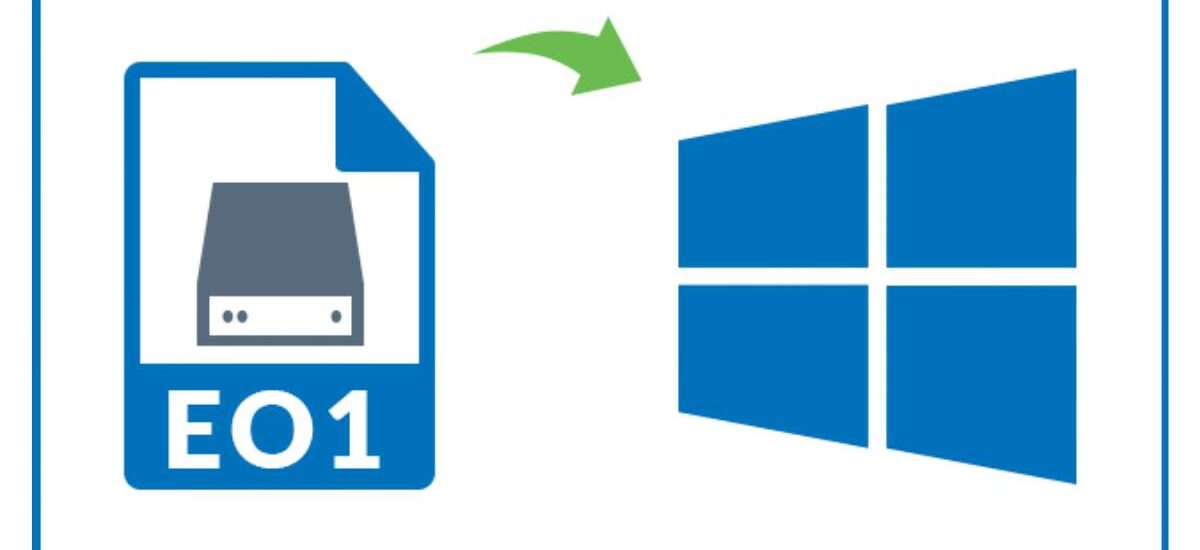
An E01 file is a forensic disk image format, originally created by Guidance Software for use with EnCase forensic tools. It is designed to store an exact, bit-by-bit copy of a storage device such as a hard drive, SSD, USB drive, or memory card.
Unlike normal file copies, an E01 image preserves:
- Deleted files
- Unallocated space
- File system metadata
- Slack space
- Timestamps
- Hash values for integrity verification
This makes E01 files essential in legal and investigative environments where data authenticity and chain of custody matter.
Because of this complexity, E01 files cannot simply be double-clicked and browsed. They require specialized forensic software to interpret and extract their contents.
Why You Might Need to Extract E01 File Data
There are many real-world reasons someone may need to extract data from an E01 file.
You might be reviewing digital evidence as part of an investigation.
You might be a student learning digital forensics and working with sample images.
You might need to recover specific files such as documents, emails, images, or logs from an archived drive.
You might also need to convert forensic data into a usable format for reporting or analysis.
Whatever the reason, the goal is usually the same: extract files safely, accurately, and without modifying the original evidence.
How Do I Extract the E01 File Data?
There is no single “right” way to extract E01 file data. The best method depends on your technical skill level, your purpose, and the tools available to you.
Below are three proven methods used by forensic professionals worldwide.
Each method has its strengths, limitations, and ideal use cases.
Method 1: Use a Professional Tool to Extract Your E01 Data
The most efficient and reliable way to extract E01 file data is by using a professional forensic extraction tool specifically designed for handling forensic images.
These tools are built to read E01 containers accurately while preserving forensic integrity.
They are especially useful when you need to extract large amounts of data, work under time constraints, or ensure compliance with forensic standards.
Why Professionals Prefer Dedicated Forensic Tools
Professional tools are optimized for accuracy, speed, and legal defensibility.
They handle complex file systems seamlessly and often include automation features that reduce human error.
They also support a wide range of image formats beyond E01, making them versatile for long-term use.
Most importantly, they allow you to extract files without altering the original evidence, which is critical in forensic workflows.
Step-by-Step Extraction Process Using a Professional Tool
Although the exact interface varies depending on the tool, the extraction workflow is generally similar across platforms.
Step 1: Install and Launch the Tool
Begin by installing the forensic extraction software on your system.
Make sure you are working on a machine with sufficient storage space, as extracted data can be quite large.
Once installed, launch the application.
Step 2: Load the E01 File
Use the “Add Evidence” or “Open Image” option.
Navigate to the location of your E01 file and select it.
The tool will verify the image and may calculate hash values to confirm integrity.
Step 3: Analyze the File System
After loading the image, the software will scan the file system.
This process identifies partitions, directories, deleted files, and hidden data.
Depending on the size of the image, this may take several minutes.
Step 4: Browse and Select Files
Once analysis is complete, you can browse the contents just like a regular folder structure.
Select the files or folders you wish to extract.
You can usually filter by file type, date, or status (active or deleted).
Step 5: Extract and Save to Desktop
Choose an extraction destination.
Select your desktop or a specific folder on your desktop.
Confirm the extraction process.
The tool will copy the selected data while preserving original timestamps and metadata.
Step 6: Verify Extracted Data
After extraction, review the files on your desktop.
Many tools generate reports or logs confirming the extraction process and hash values.
This step ensures the data was extracted accurately.
Key Features of the Expert-Suggested Tool
Professional forensic extraction tools typically offer the following features:
- Full E01 format support
- Read-only access to evidence
- Hash verification (MD5, SHA-1, SHA-256)
- Support for deleted and hidden files
- Metadata preservation
- Advanced filtering and search
- Batch extraction capabilities
- Export logs and forensic reports
These features make professional tools ideal for serious forensic work.
However, they may come at a cost, which leads many users to explore free alternatives.
Method 2: Save Your E01 Data Using the FTK Imager Tool
FTK Imager is one of the most popular free forensic tools available today.
It is widely used by investigators, students, and IT professionals for previewing and extracting forensic images.
FTK Imager supports E01 files and provides a reliable way to extract data without modifying the original image.
Why FTK Imager Is a Popular Choice
FTK Imager is lightweight, easy to use, and free.
It allows users to view file systems, preview files, and export selected data.
While it does not offer the advanced automation of paid tools, it is more than sufficient for many use cases.
Step-by-Step Guide to Extracting E01 Data with FTK Imager
Step 1: Download and Install FTK Imager
Download FTK Imager from the official source.
Install it on your system using default settings.
Once installed, launch the application.
Step 2: Add the E01 Image File
Click on “File” and choose “Add Evidence Item.”
Select “Image File” as the evidence type.
Navigate to your E01 file and open it.
FTK Imager will load the image and display its contents in a tree view.
Step 3: Explore the File System
Expand the drive and partition structure.
You can browse folders, view files, and even preview certain file types.
Deleted files are often marked with special icons.
Step 4: Select Files or Folders to Extract
Right-click on the file or folder you want to extract.
Choose “Export Files” or “Export Folder.”
Step 5: Choose Desktop as the Destination
When prompted, select your desktop or a folder on your desktop as the export location.
Confirm your selection.
FTK Imager will copy the selected data to your chosen location.
Step 6: Review Extracted Files
Once the export process completes, navigate to your desktop.
Verify that the files open correctly and retain expected metadata.
Limitations of FTK Imager
While FTK Imager is powerful, it does have limitations.
It is primarily designed for manual extraction.
Large datasets can take longer to process.
It also lacks some advanced reporting and automation features found in commercial tools.
Despite these limitations, FTK Imager remains an excellent choice for many users.
Method 3: Review Your E01 Files via Autopsy
Autopsy is an open-source digital forensics platform that provides advanced analysis capabilities.
It is particularly popular in academic environments and among investigators who prefer open-source tools.
Autopsy allows you to review, analyze, and extract data from E01 files through a case-based workflow.
Why Use Autopsy for E01 Files
Autopsy offers powerful visualization, indexing, and timeline features.
It supports multiple forensic image formats and integrates with The Sleuth Kit.
While it requires more setup than FTK Imager, it provides deeper analysis options.
A Step-by-Step Guide to Opening an E01 File in Autopsy
Step 1: Install Autopsy
Download Autopsy from its official website.
Install it on your system following the provided instructions.
Launch the application once installation is complete.
Step 2: Create a New Case
Click on “New Case.”
Enter a case name and select a directory for storing case data.
This case structure helps organize evidence and analysis results.
Step 3: Add the E01 Data Source
Select “Add Data Source.”
Choose “Disk Image or VM File.”
Navigate to your E01 file and add it to the case.
Autopsy will verify the image and prepare it for analysis.
Step 4: Configure Ingest Modules
Autopsy will prompt you to select ingest modules.
These modules analyze file systems, extract metadata, and identify artifacts.
Choose modules based on your needs.
You can always adjust these settings later.
Step 5: Run the Analysis
Start the ingest process.
Autopsy will scan the E01 file and build indexes.
This step may take time depending on the image size.
Step 6: Browse and Locate Files
Once analysis completes, browse through the results.
You can view files by type, location, or timeline.
Deleted and hidden files are clearly marked.
Step 7: Extract and Save Files to Desktop
Right-click on any file or folder you want to extract.
Choose the export option.
Select your desktop or a desktop folder as the destination.
Autopsy will save a copy of the selected data.
Strengths and Weaknesses of Autopsy
Autopsy excels at analysis and visualization.
It is ideal when you need context, timelines, or artifact correlation.
However, it requires more system resources and learning time.
For simple extractions, it may feel excessive.
For in-depth investigations, it is extremely powerful.
Best Practices When Extracting E01 File Data
Regardless of the method you choose, certain best practices apply universally.
Always work on a copy of the E01 file when possible.
Never modify the original evidence.
Document every step you take, especially in professional or legal contexts.
Verify extracted data using hash values if accuracy matters.
Ensure you have sufficient storage space before extraction.
Use trusted, well-maintained tools to avoid data corruption.
Common Mistakes to Avoid
One common mistake is trying to open E01 files with standard archive tools.
Another is extracting data without understanding file system structure.
Failing to verify extracted files is also a frequent oversight.
Finally, storing extracted data insecurely can create privacy or legal risks.
Avoiding these mistakes helps ensure reliable results.
Conclusion
Extracting and saving a copy of E01 file data on your desktop does not have to be complicated.
Once you understand what an E01 file is and why it requires specialized tools, the process becomes much more approachable.
Professional forensic tools offer speed, accuracy, and advanced features.
FTK Imager provides a free and user-friendly solution for many needs.
Autopsy delivers deep analysis capabilities for complex investigations.
The best method depends on your goals, experience level, and resources.
By following the step-by-step methods outlined above and applying best practices, you can confidently extract E01 file data while preserving integrity and accuracy.
Whether you are handling digital evidence for the first time or refining your forensic workflow, mastering E01 extraction is an essential skill—and now, you have a clear path forward.