If you use Microsoft Outlook, you’ve probably come across the term OST file at some point—usually when something goes wrong. Maybe Outlook won’t open. Maybe the file is corrupted. Maybe you’re trying to use two profiles. Or maybe you just want a cleaner or more organized naming structure for your Outlook data.
Whatever brought you here, you’re likely wondering:
“Can I rename an OST file? And if yes, what’s the easiest and safest way to do it?”
The short answer is:
Yes, you can rename an OST file—but not in the same way you rename normal files like photos or documents.
Outlook treats OST files like system-linked data containers. That means the process isn’t as simple as pressing F2 and typing a new name. But the good news is that it can be done safely when you follow the correct steps.
This complete guide breaks everything down in an extremely simple way—no technical jargon, no confusing instructions, and no risking your Outlook data. If you’ve never touched an OST file before, don’t worry. This article is written for everyday users who want a clear, human explanation.
Let’s begin.
What Exactly Is an OST File?
Before we jump into renaming, it helps to know what an OST actually does.
Think of an OST file as the offline copy of your Outlook mailbox. It stores:
- Your emails
- Your contacts
- Calendar entries
- Notes
- Attachments
- Tasks
- Folder structure
Whenever you connect Outlook to an Exchange, IMAP, Office 365, or Outlook.com account, Outlook automatically creates an OST file on your computer.
This file lets you:
- Work offline
- Draft emails without internet
- Access old mail
- Sync back everything when you reconnect
In other words, the OST file is Outlook’s personal backup storage system.
Because of that, Outlook locks the OST file while it is in use.
That’s why you can’t simply right-click → rename it while Outlook is open.
Why Would Anyone Want to Rename an OST File?
It may seem like a strange thing to want to rename, but many people have valid reasons. Here are the most common ones:
1. Outlook Is Showing Errors
If you get errors such as:
- “Outlook cannot open your data file.”
- “OST file is in use.”
- “Data file damaged.”
Renaming the OST is often a quick way to force Outlook to generate a fresh one.
2. You’re Managing Multiple Accounts
If you have:
- A work email
- A personal email
- A secondary inbox
- A shared mailbox
All these may generate OST files with confusing or similar names. Renaming helps keep them organized.
3. File Corruption Issues
When an OST file becomes corrupted, Outlook may get stuck. Renaming the file helps Outlook rebuild a new clean version.
4. Not Enough Space
Sometimes OST files grow too large and affect performance. Renaming + recreating the OST helps reduce clutter.
5. Custom Storage Preferences
A user may simply want better naming structure, such as:
- WorkMail.ost
- ClientMailbox2025.ost
- PersonalOutlook.ost
Instead of random autogenerated names.
Whatever your reason, the steps to rename are the same.
Important Warning Before You Rename an OST File
This part matters.
An OST file is not like a regular file. It is directly tied to your Outlook account configuration. If you rename it incorrectly or at the wrong time, Outlook may fail to load.
So, here’s the rule:
Never rename an OST file while Outlook is open.
Never rename an OST file without understanding whether it will be recreated.
Fortunately, this guide walks you through everything safely.
Let’s Get to the Main Part: How to Rename an OST File Safely (Simple Steps)
Here is the simplest, cleanest, most human explanation of how to rename an OST file without causing issues.
Step 1: Close Outlook Completely
Don’t minimize it. Don’t keep it running in the background.
How to ensure it’s fully closed:
- Close Outlook normally
- Press Ctrl + Shift + Esc to open Task Manager
- Go to Processes
- Look for OUTLOOK.EXE
- If you see it, right-click → End Task
This ensures Outlook releases the OST file.
Step 2: Locate Your OST File
Most users don’t know where Outlook stores OST files, so here is the exact path.
Typical OST File Locations
For most Windows users, OST files are found in:
C:\Users\<YourUserName>\AppData\Local\Microsoft\Outlook\If you want a fast method, use the built-in path box:
- Press Win + R
- Type this:
%localappdata%\Microsoft\Outlook\- Press Enter
Your OST file(s) will appear immediately.
You may see files like:
Outlook.ostuser@domain.com.ostarchive.ostsharedmailbox.ost
This is normal.
Step 3: Select the OST File You Want to Rename
Before renaming, make sure you know which file belongs to which Outlook profile.
If you’re unsure, here’s a quick tip:
Check the date modified
If you opened Outlook recently, the correct file will have a very recent date/time.
Check file size
Your main mailbox OST file is usually the largest.
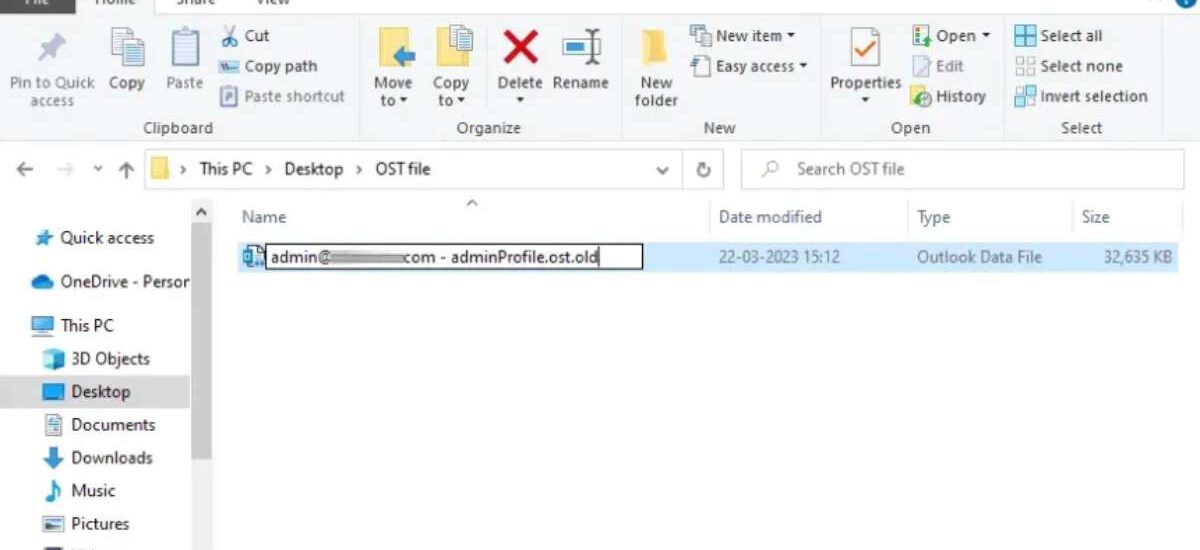
Step 4: Rename the OST File
This is the part everyone wants.
How to rename:
- Right-click the OST file
- Select Rename
- Type your new preferred name (example: WorkMail2025.ost)
- Press Enter
Yes, it can be that simple when Outlook is closed.
Outlook will either:
- Recognize your renamed file
or - Create a new one
We’ll cover both cases next.
Step 5: Restart Outlook and Let It Sync
Once you open Outlook again, one of two things will happen:
Scenario A: Outlook Works Normally
Great! That means Outlook accepted your renamed OST file.
Scenario B: Outlook Creates a Fresh OST File
This happens often—and it’s completely normal.
If Outlook can’t link the renamed file to your email profile, it will simply create a brand-new one with a brand-new name.
This is Outlook’s built-in safety mechanism.
If you don’t want Outlook to generate a new file, read the next section.
What If You Want Outlook to Actually Use Your Renamed OST File? (Very Important)
Some users rename the OST because they want Outlook to continue using the same file. But Outlook won’t do that unless its profile configuration matches the file name.
To ensure Outlook uses the renamed OST, you’ll need to basically point your Outlook profile to the new file.
However:
Modern Outlook versions (2016, 2019, 2021, Office 365) no longer allow manual OST file selection.
So Outlook will always generate a new one if the original isn’t available.
This means:
- Renaming the OST forces Outlook to create a fresh synchronized file
- You cannot force Outlook to use the renamed one directly
- This behavior protects mailbox data integrity
If what you really want is to move or backup the mailbox, you should export to a PST instead.
Alternative Method: Rename the OST by Creating a New Outlook Profile
If your goal is to give your OST a new name and use that new file actively, this is the correct method.
It’s very simple and often safer.
Step 1: Open Control Panel
- Press Win + S
- Type Control Panel
- Open it
Step 2: Go to Mail Settings
Select:
Mail (Microsoft Outlook)
If you don’t see it, switch view to:
- Small icons
- Large icons
Step 3: Create a New Profile
- Click Show Profiles
- Click Add
- Give your new profile a new name
Example: WorkProfile2025 - Configure your email account inside it
Creating a new profile automatically creates a new, freshly named OST file.
Step 4: Set the New Profile as Default
After creating your new profile, select:
Always use this profile
Pick the one you created.
Step 5: Delete or Rename Old OST Files
Now you can safely rename or delete unused OST files because Outlook won’t need them anymore.
This is the best way to truly reset your OST naming system.
Frequently Asked Questions (Humanized, Clear Answers)
1. Can renaming an OST file cause data loss?
No—because OST files are simply synchronized copies of your server mailbox.
Outlook can always recreate them.
Your real email data lives on the:
- Exchange server
- Office 365 cloud
- IMAP server
So renaming doesn’t affect actual emails.
2. Can I rename the OST while Outlook is still running?
Absolutely not.
Outlook keeps the file locked while in use.
3. Will renaming reduce file size?
No.
But forcing Outlook to generate a new OST can reduce file size if your old one was bloated.
4. What if Outlook doesn’t open after renaming?
Delete the renamed OST file and start Outlook again.
Outlook will instantly generate a new one.
5. Should I convert OST to PST before renaming?
If you want a backup of your mailbox, yes.
Because OST is not directly importable into Outlook—PST is.
Signs You Should Rename or Recreate Your OST File
You may not even realize your OST is the cause of your Outlook problems.
Here are clear symptoms:
- Outlook hangs or freezes
- Outlook opens extremely slowly
- Sending/receiving mail takes forever
- Search results are missing
- Certain emails don’t load
- Outlook shows “disconnected” repeatedly
- Error messages about data files
- Frequent sync failures
Renaming the OST is one of the fastest troubleshooting steps.
Advanced Users: When Simple Renaming Might Not Be Enough
Renaming helps in many cases, but some scenarios require more.
1. OST file corruption
Sometimes OST files get deeply corrupted, and simply renaming won’t fix it.
2. Damaged Outlook profile
If your profile itself is corrupt, you must create a new one.
3. Offline data not syncing
If your OST is outdated, rebuilding is the only fix.
4. OST too large
If your OST surpasses 20–30 GB, Outlook slows dramatically.
In those cases, renaming + recreating the OST is the best solution.
Extra Tip: Stop OST From Getting Too Big
Your OST file grows continuously as your server mailbox grows.
To stop this from happening:
- Delete unnecessary emails
- Empty Deleted Items
- Clean up Sent Items
- Archive old mail to PST
- Limit cached mailbox size in Outlook settings
A smaller OST results in faster Outlook performance.