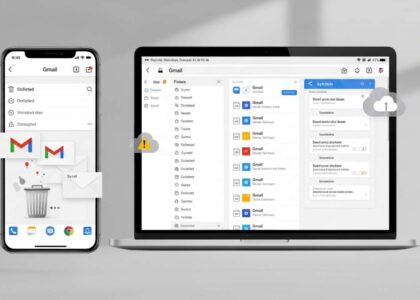
In today’s digital age, storage is no longer just a convenience — it’s a necessity. Whether you’re a student, small business owner, freelancer, or enterprise user, Google Workspace has become one of the most widely adopted platforms for communication, collaboration, file storage, and productivity. From Gmail to Google Drive, Google Photos to shared company drives, many of us rely daily on Google’s ecosystem.
But here’s a universal frustration:
“Why does my Google Workspace storage always fill up?”
Understanding Google Workspace Storage
Google Workspace (previously known as Google Apps for Work and G Suite) includes tools like:
- Gmail
- Google Drive
- Google Photos
- Google Docs, Sheets, Slides
- Calendar, Meet, Chat
- Admin console (for user & storage management)
Every Google Workspace account receives a set amount of shared storage — meaning your Gmail, Drive, and Photos all pull from the same storage pool. The exact amount depends on the plan:
- Free/Starter (Legacy G Suite & personal Google Accounts): ~15 GB shared
- Google Workspace Business Starter: 30 GB per user
- Business Standard/Plus & Enterprise: pooled/shared across users (varies by plan)
Regardless of plan, storage is finite. Even if you have a generous quota under a paid plan, large attachments, high-resolution videos, and heaps of old files can quickly exhaust your space.
That brings us to the first question most users ask.
Why Does My Google Workspace Storage Fill Up So Quickly?
There are several reasons Google Workspace storage gets filled:
1. Large Email Attachments
Gmail gives you rich email features, but attachments — especially heavy PDFs, videos, presentations, and zipped files — occupy storage.
Many users don’t realize that just receiving a large file counts against storage, even if they don’t download it.
2. Old and Forgotten Drive Files
Over the years, users accumulate thousands of files — copies of documents, duplicates, old project assets, backups, and shared items. Most of these get forgotten, yet they’re still eating space.
3. Google Photos High-Resolution Uploads
If you or your collaborators upload photos and videos at original quality, this can quickly consume large amounts of storage.
4. Shared Files and Permissions
Google Drive storage can be filled not only by files you own, but also by shared files owned by others. These count against the owner’s quota, not the viewer’s. This distinction matters when cleaning up space.
5. Pooled Storage (Business Plans)
In shared or corporate accounts, one user’s large uploads can impact the entire organizational storage pool.
Once storage approaches its limit, users begin experiencing:
- Blocked file uploads
- Unable to receive Gmail
- Syncing failures with Google Drive
- Low-storage warnings
This is frustrating — but there are free remedies.
5 Ways to Increase Google Workspace Storage for Free
Below are five proven strategies you can implement immediately to reclaim, optimize, and effectively increase your available storage — at no additional cost.
1. Free Up Google Drive Storage
Google Drive is often the biggest storage offender. Here’s how to clean it up:
a. Find Large Files First
Navigate to Google Drive and sort files by size:
- Open Google Drive
- Click Storage in the left menu
- Sort files largest to smallest
This reveals which files are consuming the most space. Most people find older videos, backups, archives, and shared presentations at the top.
b. Remove Duplicates and Old Versions
Files named copy of… or dated backups are prime targets. Remove duplicates or export/archive them offline before deleting them from Drive.
c. Clear Trash
Deleted files still occupy space until cleared permanently.
To empty trash:
- Go to Drive > Trash
- Click Empty trash
This instantly restores storage.
d. Convert Office Files
Microsoft Word, Excel, or PowerPoint files that are uploaded and not converted remain larger. Convert them to Google Docs/Sheets/Slides format. Google formats are generally smaller and don’t count against quota as aggressively.
How to Convert:
- Right-click the file
- Choose Open with Google Docs/Sheets/Slides
- Save & delete original file
2. Tips to Increase Gmail Storage Space
Gmail is often overlooked as a storage sink. You can free up space using these best practices:
a. Search Large Emails
Use special search operators:
has:attachment larger:10M— Finds emails with attachments larger than 10 MBlarger:5M— Shows any email larger than 5 MB
Select and delete older or unnecessary large emails.
b. Delete Spam and Promotions
The Promotions tab can fill quickly with images and attachments.
c. Empty Sent Mail with Attachments
Your sent folder often has duplicates of big attachments. Search:
in:sent larger:5M
Delete emails you no longer need.
d. Use Google Takeout to Backup Then Delete
If you want to retain email history but free space, export your Gmail with Google Takeout and then delete older threads from your account.
3. Delete Unwanted Google Photos
Google Photos can eat storage fast, especially with high resolution media.
a. Switch to Storage Saver Mode
If you currently upload at Original Quality, switch to Storage Saver (formerly High Quality):
- Open Google Photos
- Go to Settings
- Tap Upload quality
- Select Storage Saver
This compresses photos and videos slightly, reducing storage without significant visual loss.
b. Remove Screenshots and Blurry Images
Search filters help:
#screenshots#selfies#blur
Select and delete unwanted photos in bulk.
c. Remove Large Videos
Videos are often the biggest storage drains. Sort by size and remove what you don’t need.
4. Review Google Apps Users & Used Storage
For Workspace Administrators, storage optimization extends across users.
a. Check Storage Usage per User
Logged in as admin:
- Open Admin Console
- Go to Reports
- Find App Usage/Drive Statistics
Identify users consuming the most storage.
b. Reclaim Inactive Accounts
Old accounts belonging to departing team members may still hold large files. Reallocate or delete these accounts after backing up data.
c. Reassign Ownership of Files
Files owned by inactive or legacy accounts still count against that user’s quota. Transfer ownership to an active user to better manage space.
d. Remove Unnecessary Shared Drive Content
Shared Drives count against pooled storage. Clean up unused Shared Drives or archive content offline if no longer needed.
5. Set Up New Mail Delegation Account
This advanced trick involves using a free Google Account as a delegated mailbox — particularly useful for Gmail storage overflow.
How It Works
Mail delegation lets one account read and manage messages of another without sharing passwords. You can:
- Create a new free Gmail account
- Delegate your main inbox to the new account
- Use the new account to archive old emails
Why This Helps:
Once delegated, you can move old emails from your main Workspace mailbox into the delegated mailbox — freeing up space.
Step-by-Step:
- Create a new Gmail account (free)
- In your Workspace Gmail:
- Go to Settings > Accounts > Grant access
- Add the new Gmail address
- Log into the new account and start archiving old mail into folders
Though slightly manual, this method expands your usable storage capacity without spending.
Best Practices for Long-Term Storage Management
Freeing up storage once is helpful, but sustainable storage hygiene is key.
1. Regularly Audit Your Storage
Make it a habit to:
- Review Drive
- Empty trash monthly
- Remove large emails quarterly
This keeps storage low and prevents sudden full alerts.
2. Educate Team Members
In Workspace environments, everyone contributes to storage use. Host short training or send internal best practice tips on avoiding large attachments and archiving old data.
3. Enable Alerts Before Quota Hits Limit
Google Workspace admin settings allow quota warnings before users hit 90% capacity. Use these alerts to prompt cleanup before full storage affects operations.
4. Use Alternative Storage for Large Media
If you work with large videos, CAD files, or heavy backups:
- Use external storage (local NAS)
- Third-party cloud storage like Dropbox Basic
- Compress files before uploading to Drive
This offloads heavy files from Workspace.
5. Archive Old Projects Offline
For teams and creators, older projects often accumulate. Periodically archive complete projects to external drives and delete them from cloud storage if they’re no longer active.
Common Mistakes to Avoid
Even when trying to save space, users sometimes make avoidable errors:
Assuming Deleted Files Are Gone
Unless you empty Trash in Drive, Gmail, and Photos — deleted files remain and keep consuming space.
Ignoring Shared File Ownership
A shared large file may appear in your Drive, but storage is counted by the owner’s quota — which means cleaning your Drive alone may not help.
Keeping Backups in Workspace
Many people upload backups of devices to Google Drive. These are better stored externally.
Using Original Photo Uploads
Unless necessary for professional quality, default to storage saver to reduce space use.
Time to Wrap Up!
Google Workspace is a powerful platform, but even its generous storage plans are not infinite. Whether you use a personal Workspace account, or manage dozens of users in a business, understanding how storage works is essential.
To recap, you can increase your Google Workspace storage for free by:
- Freeing up Google Drive storage
- Optimizing and cleaning your Gmail
- Reducing Google Photos usage
- Reviewing storage per user and reclaiming unused data
- Setting up delegated accounts for overflow email archiving
Implementing these tips not only gives you back usable space but also improves performance, collaboration efficiency, and peace of mind.
There’s no need to buy extra storage immediately if you’re mindful of what you store, how you organize it, and how you clean obsolete data.
Start with the biggest offenders today — large Drive files and old email attachments — and you’ll see instant improvements.