Managing an organization’s email infrastructure often means dealing with backups, migrations, audits, and archiving. If you’re still working with Microsoft Exchange Server 2007, one of the tasks you may eventually face is exporting user mailboxes to PST files.
Maybe your company is migrating to a new Exchange version or Microsoft 365.
Maybe you need to preserve mailbox data for compliance.
Maybe you want a local backup before offboarding a user.
Regardless of the reason, exporting Exchange 2007 mailboxes to PST files requires planning, the right tools, and awareness of what the older server is capable of.
Exchange 2007 does support mailbox-to-PST export—but not as smoothly as modern systems. The older architecture, limited tools, and reliance on 32-bit components can create friction if you’re not prepared.
In this detailed guide, we’ll walk through every major method, discuss the drawbacks, and show you the best solution depending on your environment. By the end, you’ll have a clear, step-by-step understanding of how to successfully export Exchange 2007 mailboxes to PST files without putting data at risk.
Top Solutions to Export Exchange 2007 Mailbox to PST File
When it comes to Exchange 2007, there are essentially three ways to export a mailbox to a PST file:
- Using ExMerge (Microsoft’s legacy tool)
- Using PowerShell cmdlets via Exchange Management Shell
- Using a professional automated wizard designed for older Exchange environments
Each method comes with pros, cons, and limitations.
Before walking through the steps, let’s break down what makes each approach unique.
Quick Steps: How to Export Exchange 2007 Mailbox to PST
Here’s the rapid-fire summary, before we dive deep:
✔ Solution 1: ExMerge
- Install ExMerge on a 32-bit OS
- Assign proper mailbox access permissions
- Run ExMerge
- Choose a mailbox
- Export to PST
✔ Solution 2: Exchange Management Shell Cmdlets
- Install Exchange 2007 Management Tools on a 32-bit machine
- Grant Full Access permissions
- Use
Export-Mailboxcmdlet - Define PST output path
✔ Solution 3: Automated Wizard
- Install the tool
- Connect to Exchange 2007
- Fetch all mailboxes
- Choose mailbox(es)
- Export directly to PST
Now let’s explore each solution in depth.
Solution 1: Export Exchange 2007 Mailbox to PST via ExMerge
Before PowerShell-based export was introduced, Microsoft offered ExMerge.exe, a utility to export and import PST files from Exchange Server databases. While originally intended for earlier versions like Exchange 2003, many administrators still use it for Exchange 2007 environments because of its simplicity.
How ExMerge Works
ExMerge reads mailbox data from the information store and outputs it as a PST file. It’s straightforward, but the limitations are significant—especially regarding mailbox size and unsupported items.
Prerequisites for ExMerge
To use ExMerge successfully, you need:
- A 32-bit Windows OS
- Exchange 2007 running on the same domain
- Admin permissions
- Mailbox access rights
- A download of ExMerge (no longer officially supported)
Steps to Export Exchange 2007 Mailbox Using ExMerge
Step 1: Install ExMerge
Download and install ExMerge on a 32-bit workstation or server. Extract the contents and place exmerge.exe in a convenient directory.
Step 2: Assign Permissions
ExMerge requires Send As and Receive As permissions.
Use Active Directory Users and Computers to assign these rights to the user account performing the export.
Step 3: Run ExMerge
Launch exmerge.exe. The interface is old-school but functional.
Step 4: Choose “Extract or Import”
Select Extract data from an Exchange Server mailbox.
Step 5: Connect to the Server
Supply server name, domain credentials, and information store.
Step 6: Select Mailboxes
Choose one or multiple mailboxes to export.
Step 7: Choose Output Directory
Pick a local or network path for the PST files.
Step 8: Start Export
ExMerge runs a batch export and produces PSTs individually.
Drawbacks of the Manual ExMerge Solution
Although ExMerge works, it has many limitations that affect reliability and practicality.
1. Supports Only 32-bit
Exchange 2007 is 64-bit, but ExMerge runs only on 32-bit Windows, forcing you to use an additional workstation.
2. Struggles With Large Mailboxes
ExMerge has issues exporting mailboxes larger than 2 GB—a major problem for modern mailbox sizes.
3. Cannot Export Corrupted Items
If even one corrupted mailbox item exists, the export may fail.
4. No Support for Unicode Data
Non-English characters can break the export.
5. Limited Logging and Troubleshooting
You get minimal error information, making diagnosis difficult.
6. Deprecated by Microsoft
ExMerge is unsupported and outdated, meaning no updates, no fixes, and no official help.
Because of these limitations, most administrators avoid ExMerge unless they are dealing with very small, very old, or single-user PST export tasks.
Solution 2: Export Exchange Mailbox 2007 Using Cmdlets
Exchange 2007 introduced a command-line method to export mailboxes using PowerShell cmdlets.
This method is more powerful than ExMerge but requires a very specific setup.
Important: Export-Mailbox Works Only on 32-bit Systems
Exchange 2007’s Export-Mailbox cmdlet can run only if:
- The Exchange Management Tools are installed
- On a 32-bit Windows machine
- With Outlook 2003 or later installed
This is because the export process relies on Outlook’s MAPI libraries.
Prerequisites
To export mailboxes via cmdlet:
- Install 32-bit Outlook
- Install Exchange 2007 Management Tools (32-bit)
- Give the administrator Full Access permission
- Ensure the user isn’t hidden from the address list
- Verify that the mailbox is mounted and healthy
Steps to Export Exchange 2007 Mailbox via PowerShell Cmdlet
Step 1: Install 32-bit Exchange Management Tools
Install the tools on a 32-bit Windows OS with Outlook.
Step 2: Grant Full Access Permission
Add-MailboxPermission -Identity "username" -User "adminaccount" -AccessRights FullAccessStep 3: Run the Export Command
Example:
Export-Mailbox -Identity "username" -PSTFolderPath "C:\PSTExports"This creates a PST file in the specified directory.
Step 4: Export All Mailboxes in Bulk
Get-Mailbox -Server "EXCHSRV01" | Export-Mailbox -PSTFolderPath "C:\PSTExports\"Step 5: Verify PST Output
Check the destination folder to confirm successful export.
Limitations of PowerShell Cmdlet Export
Even though PowerShell offers better flexibility than ExMerge, it still has major drawbacks:
1. Requires Outlook Installation
This makes the setup heavier and more prone to MAPI conflicts.
2. Runs Only on 32-bit Windows
This forces a legacy OS setup, sometimes inside a VM.
3. Fails If Corruption Exists
Any corrupted item can cause the entire mailbox export to stop.
4. Slow
The export process is known to be extremely slow, especially for large mailboxes.
5. Deprecated Command
Microsoft removed the Export-Mailbox cmdlet in later versions of Exchange.
Given these limitations, PowerShell exporting is more reliable than ExMerge—but still far from ideal.
Solution 3: Use an Automated Wizard
This is by far the most efficient, most reliable, and most modern way to export mailboxes from Exchange 2007 to PST—especially for:
- Large mailbox sizes
- Multiple user mailboxes
- Corrupted EDB files
- Mixed or hybrid environments
- Compliance and data retention
An automated Exchange to PST export wizard handles everything within a few clicks.
Why Automated Tools Make Sense for Exchange 2007
Because Exchange 2007 is:
- Outdated
- No longer receiving patches
- Dependent on tools that require 32-bit OS
Using a modern extraction tool ensures you avoid crashes, data loss, corruption errors, and outdated dependencies.
Features of the Software
A reliable Exchange mailbox export tool typically includes:
✔ Export Directly to PST
No Exchange Management Tools, no Outlook dependency, no 32-bit OS requirement.
✔ Support for All Exchange Versions
Exchange 2007, 2010, 2013, 2016, 2019, and even Office 365.
✔ Export from Live Exchange or Offline EDB
Useful if the server is down or the database is corrupt.
✔ Fetch All Mailboxes Automatically
Including user mailboxes, shared mailboxes, archive mailboxes, and disconnected mailboxes.
✔ Handles Large Mailboxes Easily
PST splitting options prevent oversized file issues.
✔ Preserves Folder Structure
Emails, contacts, calendars, journals, tasks—all exported perfectly.
✔ No Need for PowerShell or ExMerge
No technical prerequisites, no complex setup.
✔ Advanced Filters
Filter by:
- Date range
- Folder
- Message class
- Item type
✔ Error-Free & Fast Export
Modern recovery engines eliminate corrupted item failures.
✔ Converts Selectively
Export one mailbox, multiple mailboxes, or all.
✔ User-Friendly Interface
Ideal for administrators who want a smooth, guided workflow.
Steps to Export Exchange 2007 Mailbox to PST File (Automated Wizard)
Below is the typical process when using a dedicated Exchange export tool:
Step 1: Install and Launch the Software
Open the wizard to access the dashboard.
Step 2: Choose Exchange Server as the Source
Select “Live Exchange” or “Offline EDB File”.
Step 3: Connect to the Exchange 2007 Environment
Provide:
- Server name
- Admin credentials
- Domain details
The tool auto-detects mailboxes.
Step 4: Load All Mailboxes
The software displays:
- User mailboxes
- Shared mailboxes
- Archive mailboxes
- Disconnected mailboxes
Step 5: Select Mailboxes to Export
Choose one or multiple mailboxes depending on your requirement.
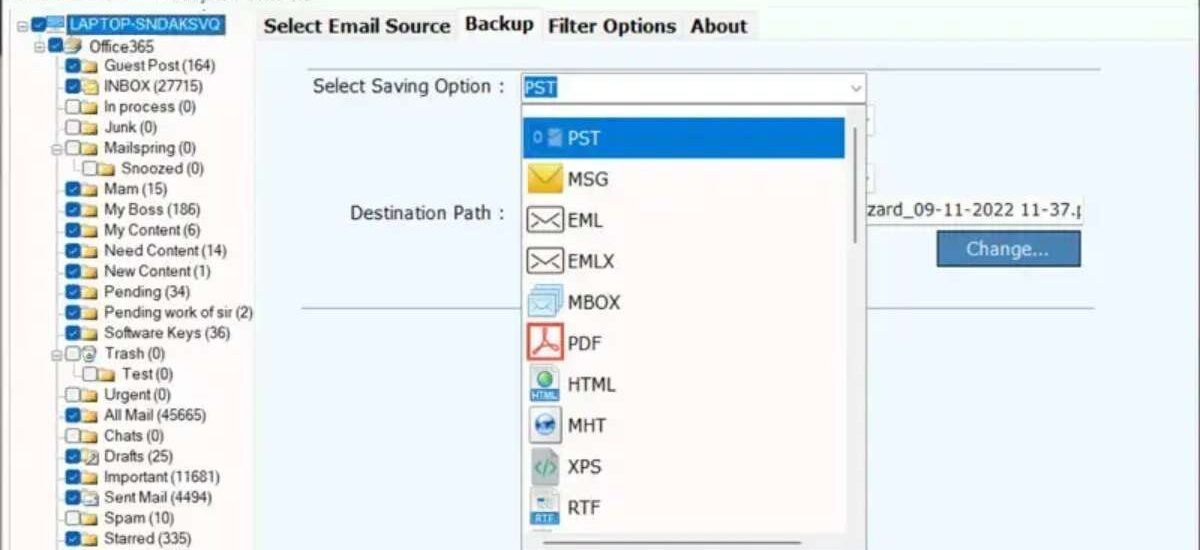
Step 6: Choose PST as the Output Format
You can also select:
- EML
- MSG
- MBOX
- Office 365
- Newer Exchange versions
But here we select PST.
Step 7: Apply Filters (Optional)
Filter by:
- Date
- Folder
- Category
- Item class
Step 8: Set PST File Location
Choose where the PST files will be saved.
Step 9: Start the Export Process
The wizard shows real-time progress and logs.
Step 10: Verify the PST File
Open the PST in Outlook or secure it in long-term storage.
This method gives the most stable, compliant, and future-proof results.
Bringing It All Together
Exporting Exchange 2007 mailboxes to PST files is possible through multiple methods, but not all of them are equal. Older tools like ExMerge and Export-Mailbox still work in certain situations, but they come with major limitations—especially in modern environments requiring reliability, compatibility, and speed.
If you only need to export a small mailbox or work in a strictly legacy environment, ExMerge or PowerShell might get the job done.
But when you need:
- Bulk mailbox export
- Large mailbox support
- Error-free migration
- No dependency on 32-bit tools
- User-friendly operation
- Compatibility with modern systems
the automated wizard method is the safest and most efficient choice.
In today’s digital landscape—where compliance, retention, and security are non-negotiable—using an up-to-date, professional tool ensures your organization avoids unnecessary risks and downtime.
Whether you’re preparing for a migration, cleaning up old mailboxes, or simply backing up critical data, exporting mailboxes from Exchange 2007 to PST becomes simple, structured, and stress-free when you use the right approach.